


Academic Licensing Program – Troubleshooting
Troubleshooting issues with academic licenses and software installation.
Troubleshooting Suggestions
Common issues that Academic users encounter during the licensing and installation processes.
Simio is a native Windows application and does not run natively on OSX (Mac). Therefore, on Apple machines, Simio can only be run where there is a Windows instance. To set up a Windows instance on your Mac, please follow the instructions provided in our Mac Reference Manual: Running Simio on Mac/OSX.
*Simio does not support nor endorse any third-party applications.
Academic Grant applications that do not provide verification of affiliation with a qualified academic institution will be denied. Academic Grants are only approved for faculty and staff members at qualified academic institutions that provide a web link that shows their eligible position. This can be an official university profile page, a Google Scholar page, a Research Gate page, etc.
Unable to Verify Your Professor/Advisor’s Affiliation with the Institution
If we are unable to verify your professor/advisor is affiliated with your academic institution, your request will be tentatively denied until we receive verification from you. To ensure that your application request is approved, you may provide a web link to your professor/advisor’s academic profile page in the Additional Details section of the application. You will not need to do this if you use a student license claim code.
Duplicate Request
Your Student license request will be denied if you have already received a Student License that has not yet expired. Student Licenses are active for (1) year. Your Student license expiration date is included in your award email; to locate your award email, search your email using your Academic Student License Identifier (ASL-XXXXXXXX-XXXXX) for activation instructions.
- If you require another license activation, please email academic@simio.com and provide your Academic Student License Identifier and an explanation for why you need another license activation (e.g., “I replaced my computer,” “I didn’t receive the license email,” “I have two computers,” etc.).
Your license information will be emailed to you. Please check all folders of your email inbox for an email from academic@simio.com.
“License Key Not Recognized” Error Message
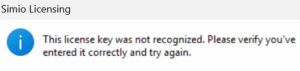
If you receive the above error message, you are likely experiencing one of the following issues:
- You have mistyped your license key.
- You have entered your Student License Identifier rather than license key (the license key format is: XXXX-XXXX-XXXX-XXXX; the record identifier format is: ASL- XXXXXXXX-XXXXX).
- Your virus software has incorrectly flagged our license dll – see Simio-DLL-AVResponse for details and instructions.
“Your license failed to activate”
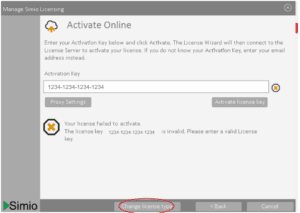
If you see the above activation field, you are entering your license key in the wrong location. To get to the correct field, select the “Change license type” button, then select “Classic Licensing” on the next pop-up.
“Authentication Error”
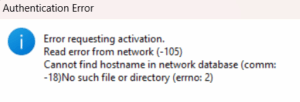
If you receive the above error message, this is caused by something preventing the license from being returned from our server to the machine on which it is being activated: a firewall, or something else on the network, or anti-virus/security software on the computer. The activation was successful on our server, but the license file was likely not returned/created on the machine.
To resolve this error, consider temporarily disabling security measures or allowing communication between Simio and the internet (http://rlmactivation.simio.com). Consult your organization’s IT/infrastructure/security team(s) to ensure you are following best practices and protocols. Note, for student licenses: Some students have had more success activating their licenses on home networks, where there may be fewer restrictions than a campus network.
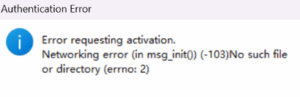
If you receive the above error message, your network may be blocking communication with the activation server.
To resolve this error, consider temporarily disabling security measures or allowing communication between Simio and the internet (http://rlmactivation.simio.com). Consult your organization’s IT/infrastructure/security team(s) to ensure you are following best practices and protocols. Note, for student licenses: Some students have had more success activating their licenses on home networks, where there may be fewer restrictions than a campus network.
Error Generating License

If you receive the above error message, the ISV Activation Website may not have been changed to “rlmactivation.simio.com” and the ISV may not have been changed to “simio” from the default values. Please try again after changing these fields. These instructions can be found on pages 12 and 13 of the RLM License Activation Manual.
Web Administration App Password
Issues with license installation will arise if the admin password in the web administration app (http://localhost:5054/) has not been changed. If you have not changed the admin password, please do so by following the instructions here:
- Go to Windows Services and find RLM Simio. Restart the service.
- Reset password by navigating to http://localhost:5054/. Select “Change Password” from the left side navigation menu. Your password must be changed to something other than the default. After changing your password, logout of localhost:5054
Note: You MUST reset your password within 10 minutes of starting the service otherwise the service will stop again. - Upon return to localhost:5054 you may now log back in using your new password.
- Restart the server by selecting “Reread/Restart Servers” from the left-side menu, then click Reread/Restart.
“Authentication Error”
If you receive the above error message, this is caused by something preventing the license from being returned from our server to the machine on which it is being activated: a firewall, or something else on the network, or anti-virus/security software on the computer. The activation was successful on our server, but the license file was likely not returned/created on the machine.
To resolve this error, consider temporarily disabling security measures or allowing communication between Simio and the internet (rlmactivation.simio.com). Consult your organization’s IT/infrastructure/security team(s) to ensure you are following best practices and protocols. Note, for student licenses: Some students have had more success activating their licenses on home networks, where there may be fewer restrictions than a campus network.
How do I renew my grant?
Use the same grant application form you used to apply for the grant, but select “Yes” for “Are you renewing an existing grant?” and provide the grant number (AG-20251243-43210) that was emailed to you in your grant award email (this is the same email that contains your licensing information). You should still specify the number of each type of license that you would like on the form as this information will not automatically carry over to the next year.
I applied for a student license. Why have I not received my license yet?
If you used a student claim code and your university email to apply, you should receive your license within 24 hours of applying. If you did not use a student claim code, it may take up to five days to receive a response. Please check all folders of your email inbox for an email from academic@simio.com.
My student license was approved and I received my award email with my license key. Why is Simio still in Trial Mode?
You need to activate your license in Simio. Follow the directions in your license award email to activate your license in Simio.